Have you ever felt like you needed a PhD in computer science just to move a handful of photos from your phone to your laptop? I’ve been there, staring at a spinning loading icon while my coffee went cold, wondering why something as simple as how to transfer files between devices has to feel like trying to bake a soufflé in a windstorm. Most tech blogs will try to sell you on expensive, proprietary cloud subscriptions or complex software suites that you definitely don’t need. Honestly, it’s a bit of a scam to make a basic task feel like a high-stakes engineering project.
I’m not here to overwhelm you with jargon or push a product that’s going to eat up your monthly budget. Instead, I’m going to break this down into simple, bite-sized steps that actually work in the real world. Think of it as my personal cheat sheet for getting your digital life organized without the headache. We’re going to look at the fastest, most reliable ways to move your stuff so you can spend less time troubleshooting and more time actually using your tech.
Table of Contents
Mastering Wireless File Sharing Methods for Seamless Living

If you’re anything like me, the last thing you want to do after a long day is hunt for a specific dongle or wrestle with a tangled mess of wires. That’s where wireless file sharing methods really save the day. Think of it like using a high-end blender instead of a manual whisk; it’s just smoother, faster, and requires way less elbow grease. If you’re looking for the easiest way to handle small documents or a few photos, using services like AirDrop or Nearby Share feels almost like magic. It’s that instant gratification we all crave.
However, if you’re tackling a massive project—say, moving an entire library of high-res travel photos—you might want to lean on cloud storage synchronization. It’s a bit like prepping all your ingredients in separate bowls before you start cooking; once everything is uploaded to Google Drive or Dropbox, it’s just there waiting for you on your laptop. While a physical connection might feel more “old school,” these digital shortcuts are the secret sauce to keeping your workflow fluid without breaking a sweat.
The Reliable Usb Cable File Transfer for Real Efficiency
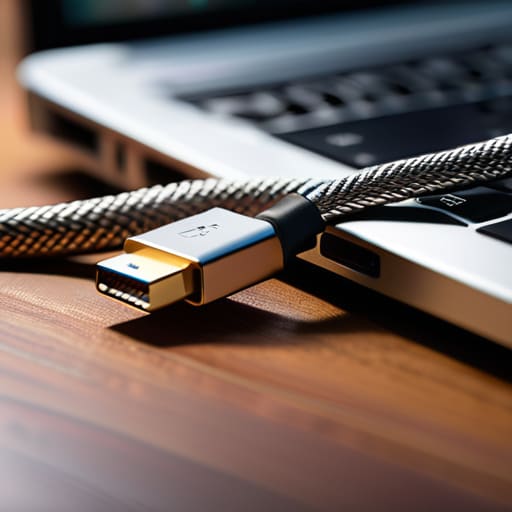
Now, if wireless methods feel a bit like trying to cook a gourmet meal using only a microwave—quick, sure, but sometimes lacking that solid foundation—then the USB cable is your heavy-duty cast-iron skillet. When you’re dealing with massive video files or entire photo libraries, USB cable file transfer is still the undisputed king of reliability. There’s no fighting with spotty Wi-Fi or waiting for a progress bar to crawl during a cloud sync; you just plug in, and you’re ready to go.
I’ve lost count of how many times I’ve tried relying on wireless file sharing methods only to have the connection drop right at 99%. It’s frustrating, like a recipe that falls apart at the very last step. If you want the fastest way to move large files without the digital equivalent of a headache, grab a high-quality cable. Whether you’re transferring data from phone to PC or moving files between external drives, this method provides a direct, stable lane that doesn’t care how much data you’re throwing at it. It’s old school, but man, does it work.
Pro-Tips for a Frictionless Digital Handshake
- Think of your cloud storage like a shared pantry. If you’re moving large batches of “ingredients” (aka huge video files), upload them to Google Drive or Dropbox first so every device in your house can grab a serving whenever they need it.
- Before you start the heavy lifting, do a quick digital declutter. There’s no point in transferring old, blurry screenshots or duplicate downloads; it’s like trying to move house but packing up every single piece of junk mail you’ve ever received.
- For those times you’re moving files between a Mac and a PC, don’t let the OS rivalry stress you out. Use a web-based transfer tool like WeTransfer—it’s the digital equivalent of a universal adapter that just works every time.
- If you’re moving sensitive stuff, like tax documents or private photos, skip the public cloud and stick to an encrypted external hard drive. It’s much safer to keep your “secret recipes” locked in a physical vault rather than leaving them out on the counter.
- Always double-check your “receipts” by verifying the file count on the destination device before you hit delete on the original. Nothing kills my productivity mood faster than thinking a transfer finished, only to realize halfway through a project that a folder went missing in transit.
The Quick Cheat Sheet: Which Method Wins?
Think of wireless sharing like a quick microwave meal—it’s perfect for grabbing a single photo or a document on the fly without any setup, but it might struggle with a massive “five-course” folder of high-res videos.
If you’re moving a mountain of data, treat it like a slow-cooker recipe: grab a USB cable and let it run. It takes a little more prep work, but it’s the most reliable way to ensure everything arrives exactly how you intended without any digital hiccups.
Don’t get married to one single way of doing things; the secret to a stress-free digital life is having a few different tools in your kitchen, from cloud services for easy access to hard drives for the heavy lifting.
The Secret Sauce to Digital Organization
“Think of transferring files like following a new recipe; you can either scramble everything together and hope for the best, or you can pick the right tools and methods to make sure every single ingredient lands exactly where it belongs without the mess.”
Morgan Bennett
Bringing It All Together
At the end of the day, moving your digital life around shouldn’t feel like trying to follow a complicated recipe without any measurements. Whether you decided that the lightning-fast speed of a physical USB cable was your best bet, or you opted for the sheer convenience of wireless cloud sharing, the goal is the same: making your tech work for you rather than the other way around. We’ve looked at how to balance speed, reliability, and ease of use, and I hope you now feel like you have a solid toolkit ready to tackle any file transfer hurdle that comes your way. Remember, there is no “perfect” method—only the method that fits your specific workflow best in the moment.
As we navigate this increasingly interconnected world, I want to remind you that mastering these small technical hurdles is really about reclaiming your time. When you stop fighting with your devices and start making them sync seamlessly, you clear out the digital clutter that bogs down your productivity. Think of these tips as the prep work for a great meal; once the ingredients are organized and ready to go, the actual cooking becomes a breeze. So, go ahead and simplify your digital space, embrace the tools at your disposal, and keep moving forward with confidence and ease. You’ve got this!
Frequently Asked Questions
Is it actually safe to transfer my sensitive documents through cloud services, or am I opening myself up to security risks?
Look, I get the hesitation—it’s like leaving your most important recipes on a shared kitchen counter. Is it safe? Generally, yes, provided you aren’t using a sketchy, free service from a random corner of the web. If you use reputable providers with two-factor authentication enabled, you’re mostly fine. Just think of it like a digital vault: the lock is strong, but you still need to make sure you’re the only one with the key.
If I'm moving a massive folder of high-res photos or 4K videos, which method is going to save me the most time and prevent a headache?
If you’re dealing with a mountain of 4K video or high-res photos, skip the wireless route. Think of it like trying to move a whole Thanksgiving feast through a tiny straw—it’s just going to take forever and get messy. For massive files, go with a high-speed USB cable or an external SSD. It’s the “heavy-duty pressure cooker” of file transfers: it’s direct, incredibly fast, and much less likely to crash halfway through.
What happens if I'm trying to move files between two totally different ecosystems, like an iPhone and a Windows PC?
Ah, the classic “clash of the titans”—the iPhone versus the Windows PC. It’s like trying to follow a sourdough recipe when you only have a microwave; the tools just don’t naturally speak the same language. But don’t panic! You aren’t stuck in digital limbo. The easiest way to bridge that gap is using cloud services like Google Drive or iCloud via a web browser. It’s the digital equivalent of a universal translator for your files.