You know that heart-sinking moment when you’re right in the middle of capturing a perfect sunset or a hilarious kid moment, only to have your phone freeze and spit out that dreaded “Storage Almost Full” notification? It’s incredibly frustrating, and honestly, it’s a total mood killer. I’ve been there more times than I’d like to admit, usually while trying to manage a dozen different smart home apps or documenting a weekend DIY project. We’ve all been told that the only real solution is to go out and buy a brand-new device with more gigabytes, but let me tell you, that is expensive nonsense. Learning how to free up phone storage shouldn’t require a massive budget or a degree in computer science; it should just be about cleaning out the digital equivalent of that junk drawer in your kitchen.
I’m not here to give you a list of generic, tech-heavy tutorials that leave you more confused than when you started. Instead, I’m going to share the exact, battle-tested methods I use to declutter my own devices without losing the photos or files that actually matter. We’re going to dive into practical, no-nonsense steps to prune the digital deadwood and get your phone running smoothly again. My goal is to help you reclaim your digital space so you can get back to living without the constant technical hiccups.
Table of Contents
- Practical Ways to Delete Unused Apps and Optimize Mobile Memory
- The Simple Art to Remove Duplicate Photos Effectively
- The "Deep Clean" Phase: 5 Pro Moves to Reclaim Your Digital Real Estate
- Quick Wins for a Leaner, Faster Phone
- A Digital Deep Breath
- Making Room for What Matters
- Frequently Asked Questions
Practical Ways to Delete Unused Apps and Optimize Mobile Memory
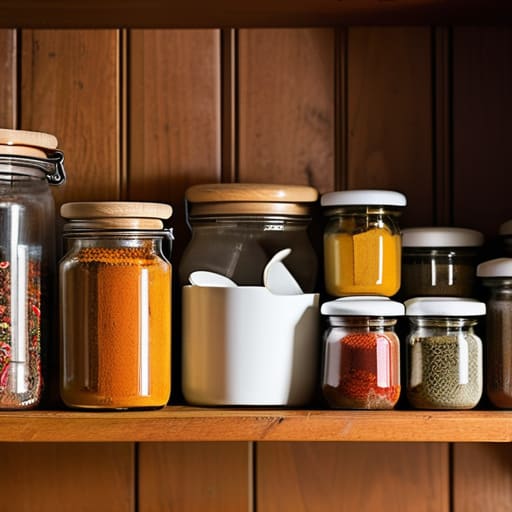
Think of your phone like a kitchen pantry. If you keep every single spice jar you bought in 2015—even the ones that are empty or expired—you’re eventually going to run out of room for the ingredients you actually use for tonight’s dinner. Your apps work the exact same way. We all have those “just in case” apps sitting there, taking up precious real estate. One of the quickest wins is to go through your home screen and delete unused apps that haven’t been touched in months. If you’re hesitant to let go, check if your device has an “offload” feature; it keeps your data intact but removes the heavy app file itself.
Beyond just deleting things, you need to look at the “invisible” clutter. Even if you love an app, it can accumulate a massive amount of digital junk over time. Learning how to clear cache on Android and iOS is like sweeping the floor after a big cooking session—it doesn’t change the recipe, but it makes everything run much smoother. Taking ten minutes to purge these temporary files can significantly optimize mobile memory without you having to sacrifice any of your favorite tools.
The Simple Art to Remove Duplicate Photos Effectively

If you’re anything like me, your camera roll probably looks like a digital junk drawer. You know the feeling: you take five nearly identical shots of your brunch, or you have three different versions of the same sunset because you weren’t quite sure which lighting was “the one.” Before you know it, those little snapshots have ballooned into a massive weight on your device. Trying to remove duplicate photos manually is like trying to sort a mountain of dried lentils by hand—it’s tedious, soul-crushing, and frankly, a waste of your Saturday.
The good news is that you don’t have to do the heavy lifting yourself. Most modern smartphones now have built-in “duplicates” folders that do the detective work for you, grouping similar shots so you can swipe through and pick the winner in seconds. If you’re feeling a bit more advanced, there are some stellar third-party apps that can scan your library and suggest what to prune. Think of it as decluttering your digital pantry; once you toss out the expired duplicates, everything else feels much easier to find and navigate.
The "Deep Clean" Phase: 5 Pro Moves to Reclaim Your Digital Real Estate
- Tackle your message clutter. We’ve all been there—staring at a thread of a thousand memes and “LOL” texts that are secretly eating up gigabytes of space. Go into your settings and clear out those massive attachments from old group chats or long-winded email threads you haven’t looked at since 2021. It’s like clearing out the expired condiments from the back of your fridge; you didn’t realize how much junk was taking up room until it was gone.
- Offload your media to the cloud. Think of your phone like a small kitchen pantry; you can’t fit every single grocery item in there at once. Move your heavy video files and high-res photos to Google Photos, iCloud, or Dropbox. Keeping the “master copies” in the cloud and only the essentials on your device is a total game-changer for your storage capacity.
- Audit your streaming downloads. If you’re a podcast junkie or a Netflix binger like me, you probably have way too many episodes and movies sitting in your “Downloads” folder waiting for a flight that happened three months ago. Go through your Spotify or Netflix offline library and purge anything you’ve already consumed. It’s the digital equivalent of returning borrowed books to the library.
- Clear out the “ghost” data in your browser and apps. Apps like TikTok, Instagram, and Chrome love to hoard “cache” files—basically digital crumbs that build up over time. Head into your app settings and clear the cache. It won’t delete your account or your posts, but it will sweep away all that temporary junk that’s slowing your phone down and hogging space.
- Manage your WhatsApp and messaging backups. If you use WhatsApp, it’s a notorious storage hog because it automatically saves every single video and GIF sent to you in your group chats. Go into the app’s storage management settings and see what’s actually worth keeping. You’ll be surprised how many “funny” videos are actually just massive files disguised as digital clutter.
Quick Wins for a Leaner, Faster Phone
Treat your app drawer like a pantry—if you haven’t “cooked” with an app in months, it’s just taking up valuable shelf space and it’s time to let it go.
Stop the photo bloat by tackling those accidental screenshots and blurry duplicates first; it’s the digital equivalent of clearing out the junk drawer to find what actually matters.
Remember that a decluttered phone isn’t just about making room for more memes, it’s about reducing that micro-stress we all feel when our tech starts acting sluggish.
A Digital Deep Breath
“Think of your phone storage like a kitchen pantry; if you keep cramming in every single ingredient you’ve ever bought without ever checking what’s actually expired, you’ll eventually run out of room for the things you actually need to cook a great meal. Decluttering your digital life isn’t just about making space—it’s about making room for what actually matters.”
Morgan Bennett
Making Room for What Matters

At the end of the day, clearing out your phone is a lot like cleaning out a cluttered pantry; you have to get rid of the expired spices and those half-empty boxes of crackers you haven’t touched in months before you can actually cook something new. We’ve walked through the heavy lifting—tackling those bloated, unused apps that are just sitting there eating up space, and finally tackling that massive pile of duplicate photos that were cluttering your digital life. By being intentional about what you keep and what you let go, you aren’t just gaining gigabytes; you’re reclaiming your digital sanity and ensuring your device actually works for you, rather than becoming a source of constant frustration.
I know that staring at a “storage full” warning can feel like just another overwhelming task on an endless to-do list, but I promise you, the payoff is worth the effort. Think of this as a digital reset that allows you to move through your day with a little more flow and a lot less friction. Once you’ve cleared the digital cobwebs, you’ll find yourself more present in the moments that actually matter, rather than being stuck managing your settings. So, take it one step at a time, enjoy the newfound breathing room, and remember that a little bit of organization goes a long way in making modern life feel just a bit more manageable.
Frequently Asked Questions
Is it safe to clear my "System Data" or "Other" storage, or am I going to break something if I try to touch those files?
Look, I get the temptation. Seeing that massive “System Data” chunk feels like finding a mystery ingredient in your pantry that’s taking up way too much shelf space. But here’s the deal: please don’t go poking around in those files manually. It’s like trying to fix a complex soufflé by poking it with a fork—you’re much more likely to make a mess than fix it. Those files are the “secret sauce” that keeps your OS running.
If I move my photos to a cloud service like iCloud or Google Photos to save space, will they still be accessible if I'm offline?
Think of your cloud storage like a pantry: it’s great for holding everything, but you can’t cook a meal if you can’t reach the ingredients. If you use “Optimize Storage” settings, your phone keeps tiny, low-res versions of photos while the high-quality originals live in the cloud. So, if you’re stuck offline without Wi-Fi or data, you can still see them, but they’ll look a bit blurry, and you won’t be able to edit or share them until you’re back online.
Will deleting all these old apps and cached files actually help my phone run faster, or am I just making room for more clutter?
It’s a fair question—it feels a bit like cleaning out your pantry just to buy more groceries, right? But here’s the deal: it actually does help. Think of your phone’s storage like a kitchen counter. If it’s buried under old mail and half-empty boxes, you can’t even find the cutting board to cook. By clearing out those bloated apps and cached files, you’re giving your processor more “breathing room” to work efficiently, which definitely speeds things up.